The Family Archive Handover: Retiring an Old PC Without Losing the Photos, Letters and Passwords

Most old PCs do not get a dramatic send-off. They get shoved into a cupboard, left in the garage, or balanced on a shelf until someone needs the space. The trouble is that the machine is rarely just a machine. It is the place where the family photos landed, where school letters were saved, where a tax return or two was filed, and where a browser still remembers far too much about you.
If you are ready to retire an old computer in Pembroke or anywhere nearby, treat it like a handover rather than a bin day. There are two jobs: rescue the family archive, then wipe the drive properly. Get those in the right order and the rest is fairly straightforward.
Start with the archive, not the screwdriver
Before you unplug anything, make a list of what actually matters. Do not rely on memory while sitting at the machine. Walk around the house and think about the things you would be annoyed, embarrassed or genuinely upset to lose.
Common candidates include:
- Photos and videos, including the ones copied from old phones
- Scanned letters, school forms, medical letters and guarantee documents
- Work files, CVs, invoices and tax records
- Browser bookmarks and saved passwords
- Email folders stored on the PC rather than in the cloud
- Licence keys for software you still use
- A password manager export, if you use one
- Anything sitting on the Desktop, in Downloads, or in a folder called 'Stuff'
Check every user account, not just yours. A partner or child may have a separate login with photos or coursework on it. Also check cloud folders such as OneDrive, Dropbox and iCloud Drive. Some files may look like they are on the PC but are actually online-only, while others may be local copies that have never synced. Open a few to see which is which.
Copy the important material to at least two places. A portable hard drive is fine, but it should not be the only copy. Use a second drive, a trusted cloud account, or both. Then check the copies. Open photos, play a video, and make sure documents actually load. A backup you have not tested is just a hopeful box of files.
Dragging files to the Recycle Bin is not a wipe
This is the bit that catches people out. Deleting a file and emptying the Recycle Bin does not scrub it from the drive. It mostly tells Windows that the space is free for reuse. The file may sit there for months, and a determined person with the right software can sometimes bring it back.
A quick format is not much better. It prepares the drive for use again but does not necessarily overwrite the old data. If the computer is going to a charity shop, a friend, a family member or a recycling centre, you want a proper wipe rather than a tidy-looking desktop.
Sign out before you scrub
A wipe is easier if you first remove the machine from your accounts. Sign out of Microsoft, Google, Apple, Dropbox, OneDrive and any browser profiles you use. Deauthorise software such as Adobe or Microsoft Office if it counts devices. Remove the PC from your password manager's trusted devices, if that applies. Unpair Bluetooth devices and forget the home Wi-Fi network if you are passing the machine on.
This is also the moment to make sure you have your passwords elsewhere. If the old PC is the only place a password is saved, deal with that before the drive is wiped. A password manager export should be stored encrypted, not on a loose USB stick in the kitchen drawer.
Choose the wipe that matches the drive
The right method depends on whether the PC has a traditional spinning hard drive or a solid-state drive. If you are not sure, look up the model number or check the drive information in Windows. It matters, because some old advice is now out of date.
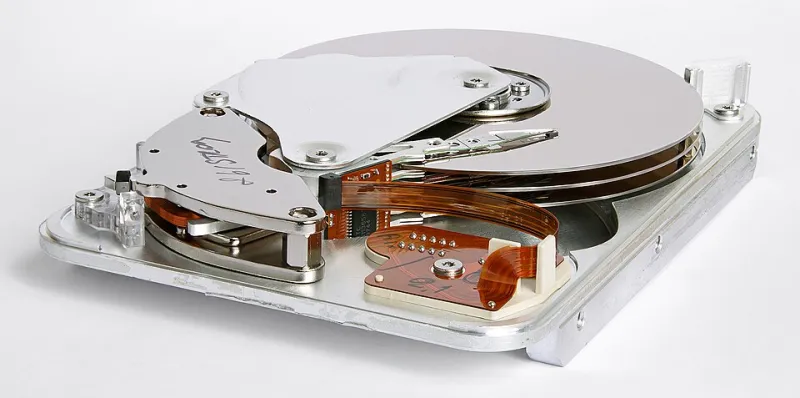
For an old spinning hard drive, a full overwrite is the thorough option. Free tools such as Eraser on Windows, or a bootable tool like ShredOS, can write over the whole drive. DBAN is often mentioned, but it is best kept for old spinning disks and should not be used on modern SSDs. Windows also has a reset option with a 'clean data' setting, which is convenient for a basic handover but not always as thorough as a dedicated wipe.
For a solid-state drive, do not reach for the old overwrite tools. SSDs handle data differently, and repeated overwriting can add unnecessary wear. The better route is usually the drive maker's own secure erase tool, such as Samsung Magician, Crucial Storage Executive or Western Digital Dashboard. If the PC supports encryption, another practical approach is to turn on full-disk encryption, confirm it is working, and then reset the PC. Once the drive is encrypted, a reset can leave the old data effectively locked away.
On a Mac, turn on FileVault first if you can, then erase the drive using Disk Utility. For an older Mac with a spinning drive, Disk Utility's security options can overwrite the disk. If the machine will not boot at all, you may need to remove the drive and wipe it in a caddy, or ask a repairer to do it for you.
Recycling and passing it on around Pembroke
Once the drive is wiped, the PC can be recycled or passed on. Do not put it in the general waste bin. Pembrokeshire County Council's household waste recycling centres accept electrical items, but check the council's current pages before you travel, as opening hours and acceptance rules can change. Some retailers also offer take-back schemes when you buy a replacement, so it is worth asking.
If you are giving the PC to a charity shop or a local group, ring ahead. Many charities are cautious about older electricals, and some will only accept items that have been safety checked. If you are passing it to a friend or family member, set it up with a fresh user account rather than handing over your old one. Remove personal stickers, clear the browser history and make sure the machine starts up cleanly.
When paying a repairer first makes sense
Sometimes the sensible move is to stop before you wipe anything. If the old PC will not start, the drive is clicking, or the only copy of a family archive is on that machine, a repairer can often recover or transfer the data before the hardware is retired. The same applies if the drive is soldered in, if the machine is encrypted and you cannot get in, or if there are business records involved.
Ask for a straightforward diagnosis and a copy of the files onto an external drive you provide. If the PC is being scrapped afterwards, ask the repairer to confirm the old drive has been wiped or removed. In many cases, a bench check and a data transfer cost far less than the worry of losing years of photos.
A simple retirement checklist
- List the files, photos and accounts that matter.
- Copy them to two places and test the copies.
- Sign out of accounts and deauthorise software.
- Identify whether the drive is a hard drive or an SSD.
- Use the right wipe method for that drive.
- Recycle through a proper electricals route or pass the PC on with a fresh setup.
An old PC does not need to be a threat or a guilt trip. Back up the family archive, wipe the drive with a method that suits the hardware, and give the machine a tidy retirement. If you are unsure which step applies to your machine, that is exactly the kind of thing a local repairer can check before anything is deleted for good.