One Computer, Four People: Setting Up a Shared Family PC in Pembrokeshire Without the Arguments
Photo: Eduard Uhlenhuth, Public domain, via Wikimedia Commons
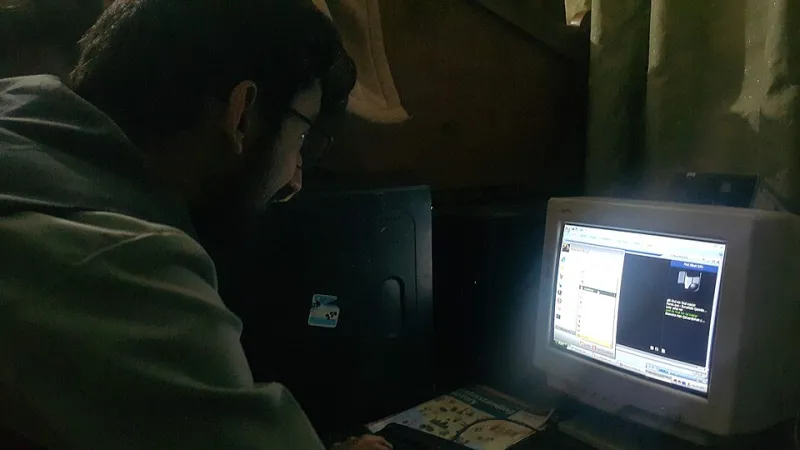
There's a scene that plays out in kitchens from Pembroke to Fishguard most weeknights. Someone's trying to print a school letter, someone else is midway through a video call, and a third person has just closed a game to free up the laptop. One computer, several people, and — almost always — a single login that everybody shares.
That last part is where the trouble starts. Sharing one Windows account means sharing one set of files, one browser history, one email session and one set of saved passwords. It also means that when something goes wrong, nobody can quite say who did what. The good news is that fixing it takes about an hour on a quiet Sunday, and it costs nothing.
Why the single shared account causes most of the grief
When everyone uses the same login, the computer treats you all as the same person. A child browsing YouTube ends up in the same history as a parent doing the online banking. Saved passwords auto-fill for whoever opens the browser next. Documents land in one chaotic folder where a school permission slip sits next to a tax letter.
Worse, if that single account is an administrator, anyone using it can install software, change settings or approve a dodgy pop-up. Most of the malware we see brought into the workshop in Pembroke got in that way — not through clever hacking, but through someone clicking yes on a machine they had full control over.
Step one: everyone gets their own account
On Windows 11, open Settings, then Accounts, then Other users. From there you can add a family member. Each person ends up with their own desktop, their own documents folder and their own sign-in. It sounds fussy; in practice it takes two minutes per person and removes about eighty per cent of the day-to-day friction.
The important detail is the account type. Give yourself — the person who maintains the PC — an administrator account. Everyone else should be a standard user. That includes teenagers. A standard account can still browse, game, stream and do homework perfectly well; it just can't quietly install a browser toolbar that hijacks the homepage.
If family members are young enough to need screen time limits or content filtering, set them up through Microsoft Family Safety rather than trying to police it manually. That route needs a Microsoft account for the child, which is worth doing properly once rather than cobbling together later.
The guest problem: visitors, grandparents and the odd cousin
Windows 11 no longer has the old built-in guest account, so the tidy solution is a standard local account with a simple name like Visitor, no password, and no administrator rights. Anyone staying for a weekend can check email and browse without touching the family photos or leaving their session logged in for the next person.
If a guest needs to do something more involved — printing a boarding pass, say — log them in yourself and sit nearby. It's the digital equivalent of making sure they don't wander into the wrong room.
Browser profiles: the bit everyone forgets
Separate Windows accounts help, but if the whole household uses one browser on one account, you're still muddled. Edge and Chrome both let you create multiple profiles, each with its own bookmarks, history and password store. Set up one per person, and give the shared kitchen profile its own so nobody inherits somebody else's shopping basket.
This matters more than it sounds. A shared browser profile means saved card details auto-filling on a site a child is browsing. Separate profiles keep that firmly where it belongs.
Passwords: one manager, not a notebook by the kettle
Once everyone has their own login, the next weak point is passwords. A free password manager — Bitwarden is a solid, honest choice, and the built-in ones in Edge and Chrome are better than nothing — lets each person keep their own vault behind one strong master password.
Don't share the master password around the family. If a child needs access to something, share that single item through the manager rather than handing over the keys to everything. And for parents, turn on two-factor authentication on the accounts that matter: email, bank, and anything holding payment details.
Keeping photos, letters and homework apart
Each Windows account gets its own Documents and Pictures folders automatically, which solves most of it. For the things everyone genuinely needs — the scanned passport copies, the warranty receipts, the printable homework templates — create one folder called Household, right-click it, and share it with the other accounts on the PC.
Everything else stays private by default. That's the right way round: shared when you choose it, not shared because nobody got round to sorting it.
Backups still apply
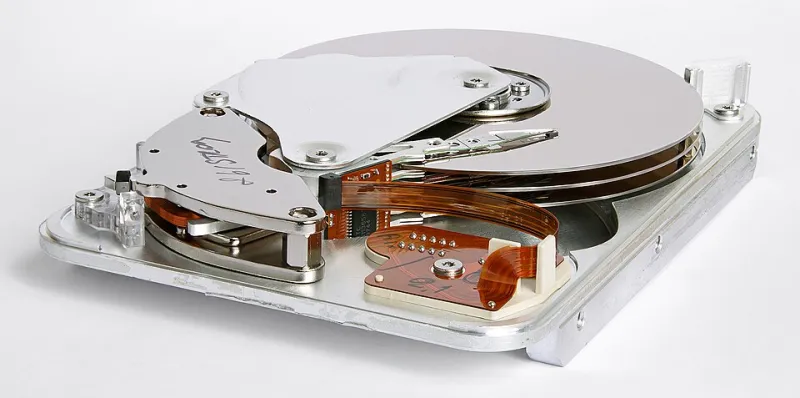
All of this organisation means nothing if the drive fails. The three-copy habit we've written about before holds here too: the original on the PC, a copy on an external drive kept in a different room, and a copy in cloud storage. OneDrive or Google Drive will do the job for most families, and both can be set to back up specific folders rather than everything.
Check the backup actually runs. A backup you've never restored isn't a backup, it's a hope.
The one-page house rules
Print this and stick it near the monitor. It works better than any amount of nagging.
- Everyone signs in with their own account. No borrowing, no 'just this once'.
- Only the parent account installs software. If a pop-up asks for an administrator password, it waits.
- Guest logins are for guests. Log out afterwards.
- Passwords live in the password manager, not on a sticky note.
- Anything that needs to be shared goes in the Household folder.
- Nobody approves a Windows prompt they don't understand. Ask first.
- The external backup drive gets plugged in once a week — put a recurring reminder on the fridge.
None of this is glamorous, and none of it requires new hardware. It's just a bit of tidying that turns one squabbled-over computer into a machine that quietly does its job for four different people. If something goes sideways halfway through, that's what we're here for.