Watts Behind the Desk: A Pembrokeshire Winter Guide to What Your PC Adds to the Bill
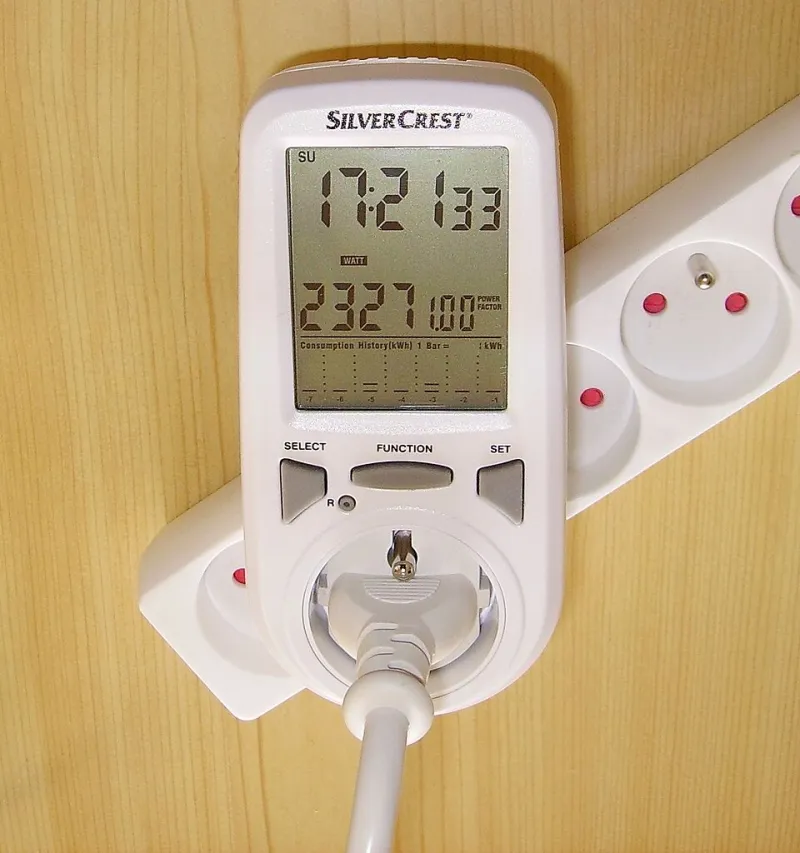
Photo: Cjp24, CC BY-SA 3.0, via Wikimedia Commons
Pembrokeshire winters have a way of making the desk the centre of the house. The heating clicks on, the curtains get drawn at half four, and suddenly the PC, monitor, speakers and that little lamp are all pulling power through the same corner of the room. None of it is dramatic on its own. Added together over a dark, drizzly November to March, it can be the difference between a modest bill and a slightly alarming one.
This isn't about unplugging everything and working by candlelight. It's about knowing which bits are worth switching off, which settings actually do something, and when an old tower has crossed from 'a bit thirsty' to 'this is paying for its own replacement'.
Start with the meter, not the maths
PC power supplies have a number on the side — 500W, 650W, 750W — and it is almost never what the machine actually pulls from the wall. That figure is a ceiling, not a running cost. The only honest way to know is to measure it.
A simple plug-in energy meter costs somewhere around £10–£20 and is one of the least glamorous useful gadgets you can own. Plug the meter into the wall socket, plug the PC into the meter, zero the reading, and use the computer as normal for a day. Do the same for the monitor if you want a separate figure, or put a short extension lead through the meter and measure the whole desk — as long as you are not daisy-chaining dangerous things or plugging in a heater.
Safety first: a normal plug-in meter is fine for a PC, monitor, speakers and a lamp. It is not the tool for an electric shower, an immersion heater or anything with a heavy motor. Keep it dry, keep it ventilated, and don't leave a temporary measuring setup tangled under a desk for months.
What a meter actually tells you
You are looking for two numbers: the wattage when the PC is working, and the wattage when it is sitting idle on the desktop doing nothing. A third number — the draw in sleep or hibernate — is the one most people never check, and it is often the most useful.
A fairly ordinary five-year-old office tower might pull 180W while you are working, 75W sitting idle, and around 3W in sleep. A gaming tower with a big graphics card can be much higher under load and still surprisingly high at idle. A laptop is usually far lower, often 30–60W while charging and working, then a few watts or less once the battery is full.
The monitor matters too, though less than people fear. A 24-inch LED screen might use 25W when on and under 1W on standby. An old LED desk lamp is not the villain either: a 5W lamp left on for five hours costs roughly 0.6p at 24.5p per kWh. The PC is usually the main event.
A worked example for a Pembroke desk
Let's use a realistic setup: a desktop tower measured at 180W working, 75W idle, 3W asleep; a 24-inch monitor at 25W on and 0.5W on standby. The PC is used for four hours of proper work, sits idle for two hours, and sleeps for the remaining eighteen. The monitor is on for those six active-ish hours and on standby for eighteen.
At 24.5p per kWh — roughly where many standard variable tariffs have been sitting in late 2026, though your own bill is the number that matters — the daily maths looks like this:
- PC: 4 hours × 180W = 720Wh; 2 hours × 75W = 150Wh; 18 hours × 3W = 54Wh. Total: 924Wh, or 0.924 kWh.
- Monitor: 6 hours × 25W = 150Wh; 18 hours × 0.5W = 9Wh. Total: 159Wh, or 0.159 kWh.
- Combined: about 1.08 kWh per day. At 24.5p, that is roughly 26.5p a day, £7.95 a month over 30 days, or about £97 a year.
That is not nothing, but it is also not a reason to panic. The bigger question is what happens when the PC never sleeps.
The overnight question
Leaving a desktop on overnight is the habit that quietly costs. In the example above, the PC sleeps for eighteen hours at 3W. If instead it sits idle at 75W for those eighteen hours, the difference is 72W × 18 hours = 1.296 kWh a day. At 24.5p, that is about 32p a day, or roughly £116 a year — for doing nothing at all.
A thirstier gaming tower idling at 120W makes the gap wider still. The old advice about leaving computers on to avoid wear and tear belongs to a different era of spinning hard drives and fragile power supplies. Modern PCs sleep and wake quickly, and a sleep state is far kinder to the electricity bill. If sleep is unreliable on your machine, hibernate is the next best option: it writes the session to disk and uses almost no power.
There are exceptions, but they are narrow. If the PC is genuinely running overnight backups, updates or a home server, that is a different job. For a normal home desk, the verdict is simple: put it to sleep, or shut it down. You are not damaging it by doing so.
Settings that earn their keep
You do not need to become a human electricity meter. A few settings do most of the work:
- Set the display to turn off after 5–10 minutes of inactivity.
- Set the PC to sleep after 15–20 minutes, or hibernate after an hour if sleep causes problems.
- Turn off USB charging and 'wake on USB' in sleep if you don't need them.
- Switch off the printer, speakers and any desk gadgets at the wall when they are not in use. A printer in standby is not huge, but it is not zero either.
- Leave the router alone unless you have a reason to switch it — broadband and phone service often depend on it.
- Check Windows Update active hours so the machine is not waking at midnight to install things.
One small warning: 'Fast Startup' in Windows can make a shutdown look like a shutdown while really putting the PC into a partial hibernation state. If you want a clean start, use Restart now and then, or turn Fast Startup off if you prefer a proper shutdown.
When the old tower is the expensive option
An old PC can be cheap to buy and expensive to run. If a tower is idling at 100W or more, and a modern mini PC or laptop would idle at 10–15W, the saving can be £70–£120 a year at current rates. That does not automatically mean you should replace it. A £300 refurbished machine paid for purely by energy savings might take three or four years to break even.
But running cost is part of the whole picture. If the old tower is also slow, noisy, struggling with Windows 11, or needing a repair, the wattage tips the balance. A sensible upgrade — an SSD, a more efficient power supply, or a smaller modern machine — can make sense when the maths and the practical annoyance line up. If it is working fine and you only browse and write letters, keep it and let it sleep.
A sensible winter routine
The winter wattage audit is not a one-off chore. Once you have measured the desk, you know roughly what it costs. Then it is just a case of letting sleep do its job, switching off the things that don't need to be on, and not leaving a glowing tower humming away at midnight for no reason.
If you are in Pembroke, Pembroke Dock, Neyland or out into the villages and you are not sure whether your PC is running hotter or harder than it should, a quick check is often worth it. Winter is when the desk gets the most use — and when a small setting change quietly pays for itself.