Dead Desktop, Silent Laptop: The Calm First Ten Minutes Before You Call a Repairer
Photo: Oliver Propst, CC BY-SA 3.0, via Wikimedia Commons
There are few sights less welcome than a computer that refuses to wake up. Maybe the fans spin for a second and stop. Maybe the screen stays stubbornly black. Maybe there is no light, no noise and no sign of life at all. Before you start unplugging everything in sight, take a breath. The first ten minutes matter, but they should be calm, methodical and safe.
This guide is for the ordinary Pembroke-area household: the desktop in the spare room, the laptop on the kitchen table, the machine that holds family photos, school letters and the accounts. It is not a licence to start poking around inside a power supply. It is a practical triage plan — what to check, what to leave alone, and what to tell a local repairer when the time comes.
Start with the boring bits: power and plugs
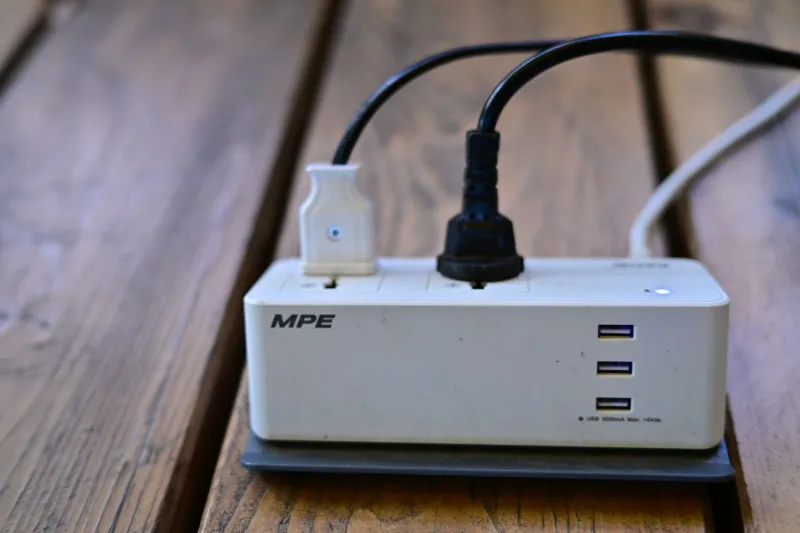
Nine times out of ten, the first checks are gloriously unglamorous. For a desktop, confirm the wall socket is actually working by plugging in a lamp or phone charger. Check the kettle-style power lead at both ends. If there is a switch on the back of the power supply, make sure it is set to the correct position. If you use a surge-protected extension lead, try the PC directly in a known-good wall socket — just for the test.
For a laptop, ignore the screen for a moment and look at the charging brick. Is the little light on? Does the charging indicator on the laptop come on when you plug it in? Try a different socket and, if you can, a different charger of the correct type. A laptop with a completely flat battery and a failed charger will look exactly like a dead laptop.
One useful trick for both desktops and laptops is a hard reset of the power. Unplug the machine, or remove the charger, then hold the power button down for about fifteen to twenty seconds. Plug it back in and try again. On some machines this clears a temporary power-state glitch. It is quick, free and harmless when done properly.
The monitor is not always the villain — but check it anyway
A black screen does not always mean the computer is dead. If the desktop's fans are running and the power light is on, have a look at the monitor. Is it switched on? Is the input set to HDMI, DisplayPort or VGA as appropriate? Try the monitor's menu buttons. Reseat the video cable at both ends, and if the PC has a graphics card, make sure the cable is plugged into the graphics card rather than the motherboard. It is an easy mistake when someone has been tidying cables behind the desk.
On a laptop, try adjusting the brightness with the keyboard shortcut. If you have an external monitor handy, plug it in. If the external screen shows a picture but the laptop screen stays black, that points towards a display or cable issue rather than a completely dead machine.
Unplug the extras before you panic
Remove USB sticks, printers, external drives, webcams and anything else that is not essential. A faulty USB device can sometimes stop a PC from starting properly. Try powering on with just the keyboard and mouse connected — or, on a laptop, with nothing attached at all. If it starts, add devices back one at a time. That is a simple way to catch a troublemaker without any specialist tools.
Cables and RAM: sensible DIY, with limits
If you are comfortable doing so, and the machine is a desktop that is out of warranty, you can reseat the internal cables and memory sticks. Unplug the PC from the wall first, press the power button once to drain residual power, and touch a bare metal part of the case to reduce static. Do not open the power supply unit. Ever. Even unplugged, it can hold a dangerous charge.
For RAM, release the clips at each end of the stick, lift it out, then push it firmly back until the clips click. If there are two sticks, you can try one at a time to see whether a faulty stick is preventing startup. Keep track of which slot each came from. If the machine beeps or shows diagnostic lights, note the pattern — it can tell a repairer a great deal.
Laptops are a different matter. Many modern laptops are not designed for easy home access, and plastic clips, ribbon cables and hidden screws are easy to damage. If the underside panel comes off with a couple of screws and you feel confident, a RAM reseat may be reasonable. If it involves removing the battery, keyboard or heatpipe, stop. That is repairer territory.
Warning signs that mean stop
There are times when the correct DIY move is no move at all. Stop and unplug the machine if you notice a burning smell, sparks, scorch marks, liquid damage, a swollen or bulging battery, a power supply making a repeated clicking noise, or a drive making a rhythmic clicking sound. Do not keep pressing the power button to see if it will magically work. Repeated attempts can turn a small fault into a bigger one.
If the PC has been dropped, had a drink spilled on it, or came from a house fire or flood, do not power it on. Tell the repairer exactly what happened. Safety first, data second, hardware third.
Protect the files before you make things worse
If the machine occasionally starts but then dies, back up anything important the moment it is stable. Use a USB drive, an external hard drive or a cloud service you trust. If the computer will not start at all, do not start removing the hard drive unless you know what you are doing — and never open a hard drive's metal casing. A local repairer can often retrieve files by connecting the drive to a test machine.
If you have a recent backup, say so when you ring the repairer. It changes the conversation. If you do not, say that too. It helps them prioritise data safety rather than just getting the PC to switch on.
What to tell a Pembroke repairer
When you call, have a short story ready. What happens when you press the power button? Any lights, fans, beeps or blinking patterns? Did anything change recently — a Windows update, a new printer, a move, a power cut? Has the machine been dropped or had a spill? Is it a desktop or laptop, and roughly how old is it? Can you hear the hard drive spin up? Does an external monitor work?
That information saves time and usually saves money. In Pembroke, Pembroke Dock and the wider county, good repairers are used to sorting the simple from the serious. A clear description helps them tell you whether it is a bench job, a house call or something you can safely check yourself.
A PC that will not start is frustrating, but it is not automatically a disaster. Work through the safe checks, note what you find, and stop at the warning signs. Most importantly, do not let panic make the decisions. The calm first ten minutes are usually the most useful of the whole day.