Blinking Bulbs, Frozen Telly: A Pembrokeshire Christmas Wi-Fi Check You Can Do in Minutes

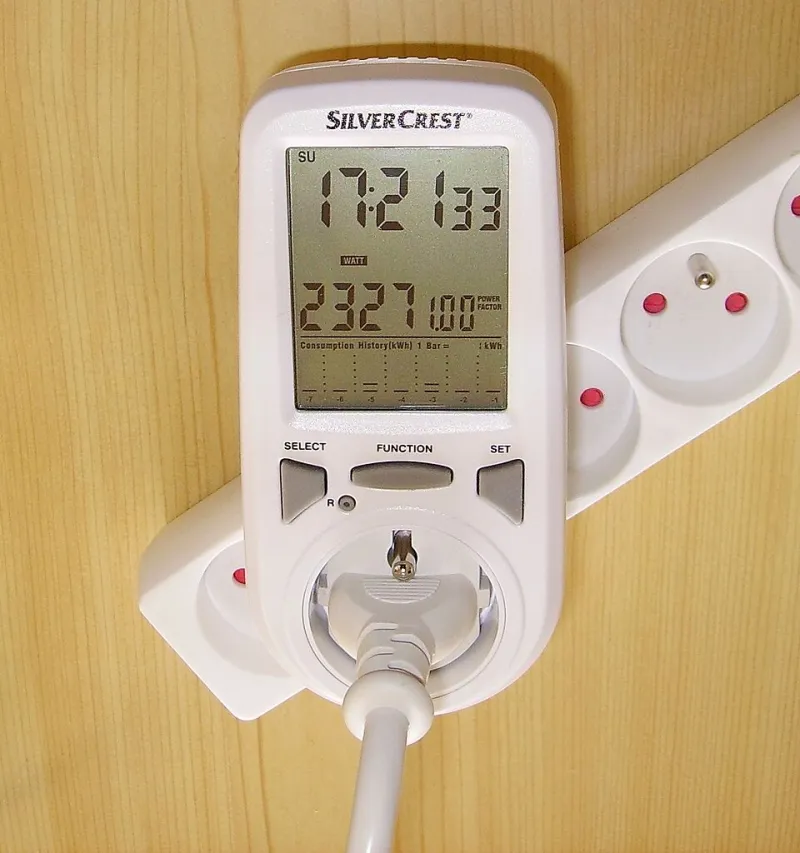
Photo: Pierre Blaché from Paris, France, CC0, via Wikimedia Commons
The tree is up. The fairy lights are doing their thing. And suddenly the iPlayer in the kitchen has decided to think about it for ten seconds before every episode. If that sounds familiar, you are not alone. Around Pembroke and Pembroke Dock, we hear the same story every December: the broadband was fine in October, then the decorations came out and the Wi-Fi went wobbly.
It is tempting to blame the provider. Sometimes they deserve it. But there is a genuinely common seasonal culprit sitting in the corner of your living room, blinking away, and it does not even know it is causing trouble.
Why twinkly things and Wi-Fi fall out
Your home Wi-Fi uses radio waves. The 2.4GHz band — the one that reaches furthest through walls — is a bit like a busy café. Lots of devices are talking at once, and they are not always polite about it. Cheap LED drivers, flickering fairy lights, budget smart plugs and even some wireless doorbells can chuck out electrical noise on or near that same band.
In a modern house, this is annoying. In a Pembrokeshire cottage with thick stone walls, it is worse. The signal is already working harder to get from the router to the back bedroom. Add a noisy plug adapter or a string of lights with a cheap power supply, and the connection has to fight through more clutter. The result is buffering, dropped video calls, and a smart TV that suddenly cannot find the network it has used since 2026 began.
The two-minute lights-off test
Before you buy a new router or ring anyone in a panic, try this. It costs nothing and tells you a lot.
- Start something that shows a Wi-Fi problem clearly — a video on the TV, a video call on a laptop, or a speed test on your phone in the room where things are worst.
- Switch off the fairy lights and any smart plugs connected to them at the wall. Not just the remote — the actual socket.
- Wait about thirty seconds. Check the video or run the test again.
If the picture settles instantly, you have found your likely suspect. That does not mean the lights have to go. It means you now know where to start moving things.
Move the router — and the tree, if you must
Routers hate being trapped. A router tucked behind the telly, sitting on the floor next to a metal lamp, or buried under a pile of Christmas cards is doing its best with one hand tied behind its back. Lift it up, give it a bit of air, and keep it away from the tree if you can.
The ideal spot is central, high, and out in the open. In a Pembroke terrace, that might be the top of a hallway shelf rather than the cosy corner behind the sofa. You do not need to rewire the house. Just moving the router a metre or two — and moving the fairy lights to a different socket — is often enough to calm things down.
Also think about what is between the router and the room that struggles. Stone walls, a chimney breast, a fish tank, a microwave in the kitchen — all of these eat signal. If the lights are clustered around the router and the telly is on the other side of a thick wall, the interference has a clear path to cause mischief.
Channel-hopping without the jargon
If moving things helps but does not quite fix it, the next step is changing the Wi-Fi channel. This sounds technical. It is not. Your router has several lanes on the 2.4GHz band, and neighbours' routers, baby monitors and cheap gadgets may all be sitting in the same lane.
Log into your router using the address on the sticker — usually something like 192.168.0.1 or 192.168.1.1 — and look for the wireless settings. On the 2.4GHz band, try channel 1, 6 or 11. These are the three non-overlapping lanes. Save the setting, let the router restart, and give it a few minutes. If it is no better, try another of those three. Leave the 5GHz band alone; it is usually doing its own thing and has less to do with fairy lights.
Smart plugs: the quiet culprits
Cheap smart plugs are brilliant little things, but some of them are noisy in the radio sense. If you have four of them clustered on one extension lead behind the telly, all chattering away, that is a lot of electrical background noise in one spot.
Try spacing them out. Keep them away from the router. And if a particular plug seems to make the Wi-Fi worse when it switches on, test it in a different room. You do not need to bin it — just move it somewhere less central.
When it is not the lights at all
Sometimes the decorations are innocent. A winter power cut, a new neighbour's router, a failing old laptop or a line fault can all cause the same symptoms. If the lights-off test changes nothing, and a wired connection to the router is also slow, it is worth checking your provider's status page or calling them before you spend money on gadgets.
At Pembroke PC Doctor, we would much rather you tried the free checks first. Most December Wi-Fi complaints in this area are not a dead router. They are a router in a bad spot, a crowded channel, or a string of lights doing something unexpected to the signal.
A calm Christmas setup checklist
- Keep the router high, central and out of the tinsel.
- Test with the lights off at the wall, not just on standby.
- Move smart plugs away from the router and spread them out.
- Try 2.4GHz channels 1, 6 or 11 if things are still sticky.
- Use a wired connection for the main TV if the wall allows it.
- Do not buy a new router until you have done the free checks.
None of this needs to spoil the decorations. A small shuffle of plugs, a slightly better spot for the router, and a quick channel change can keep the fairy lights twinkling and the Christmas telly streaming. That is a much better use of a December evening than arguing with a buffering screen.